To use public Wi-Fi safely while traveling, verify the network name with staff, connect a trusted VPN before you open anything, stick to HTTPS sites, and save banking and other sensitive work for cellular data. Set all of it up before you leave home, because most of the risk on a shared network comes from devices that auto-connect before their protections are active.
Here is the honest version: public Wi-Fi is not automatically dangerous. It is unauthenticated, which means the network itself is not verifying who is on it, and that is a very different thing from being an active attack. Treat it the way you would treat a busy hotel lobby rather than like your own front door.
It also helps to know the three threats by name, because the rest of this guide is built on them. A man-in-the-middle attack puts an attacker between your device and the internet. An evil twin is a fake network with a legitimate-looking name, so everything you send flows through someone else’s equipment. Packet sniffing is just software that reads traffic passing across the network. Free sniffing tools are widely available, which is the whole problem.
Table of Contents
- 1What You Need
- 2How to Use Public Wi-Fi Safely: Step-by-Step
- 31. Choose a Legitimate Network
- 42. Update Your Device Before Connecting
- 53. Connect to a VPN or Trusted Network
- 64. Check HTTPS and Skip Sensitive Transactions on Public Wi-Fi
- 75. Use Strong Authentication and Safer Browsing
- 86. Turn Off Connectivity When Finished
- 9Common Mistakes
- 10Frequently Asked Questions
- 11Is hotel Wi-Fi safe for checking email?
- 12Do I need a VPN when using airport or hotel Wi-Fi?
- 13How can I tell whether a public Wi-Fi network is legitimate?
- 14What should I do if a browser shows an HTTPS warning?
- 15Can public Wi-Fi steal my banking information?
- 16How do I protect my phone and laptop after returning from a trip?
- 17Conclusion
What You Need
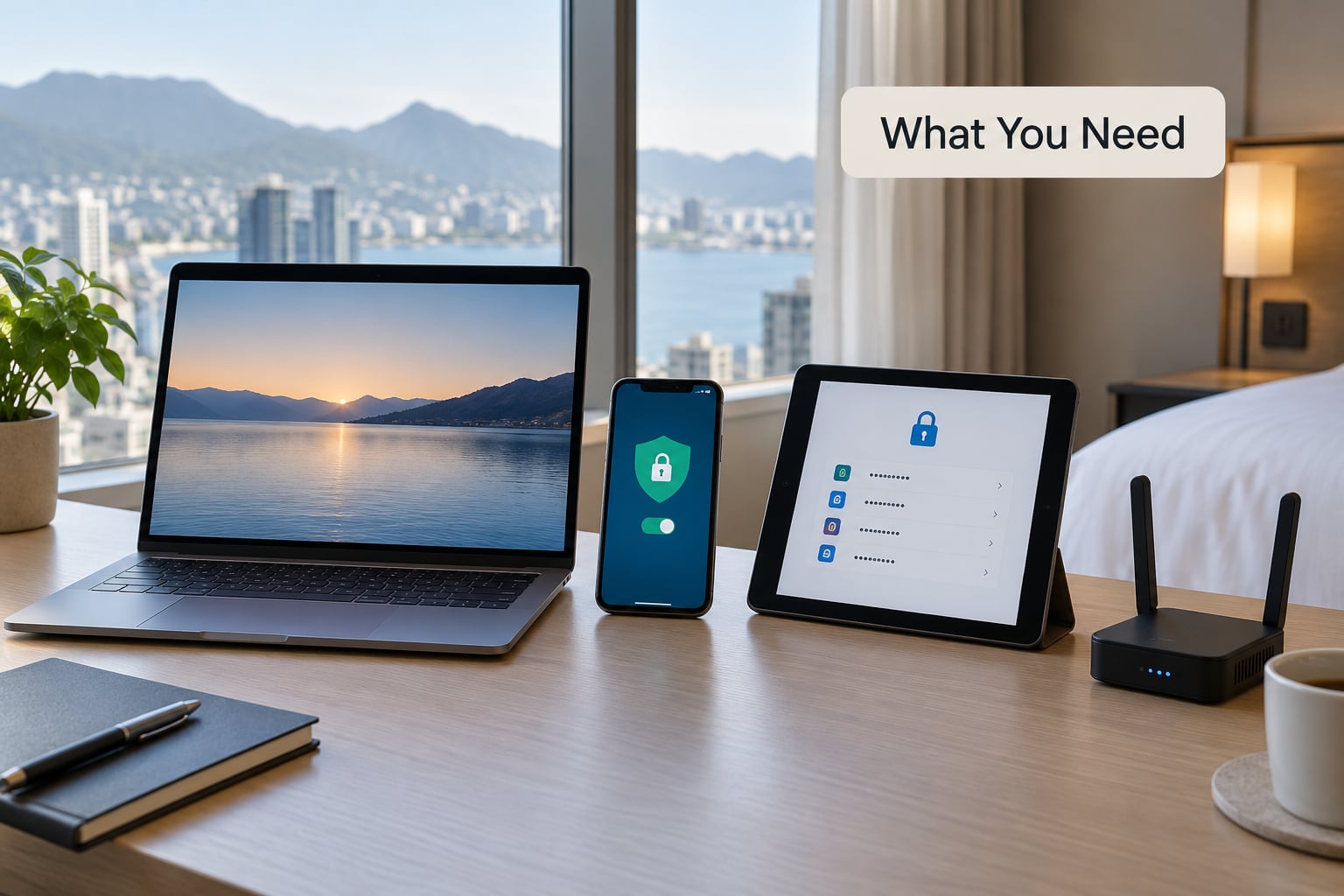
You do not need a lot of gear. You need a few things configured before you are standing at a boarding gate with 40 minutes of downtime.
- A device you trust. Your own phone, laptop or tablet, with a screen lock and disk encryption turned on. A borrowed or shared machine defeats most of this.
- Automatic updates switched on. Operating system, browser, VPN app and the apps you actually use. Security patches are the boring thing that keeps you off incident lists.
- A VPN you have already paid for and tested. It needs to be signed in and configured to connect on demand before you ever join a foreign network.
- Multifactor authentication on your important accounts. Email first, because email is the reset button for everything else.
- A password manager. It lets you use a unique password on every site without trying to remember any of them.
- A backup connection. Cellular data, a phone hotspot or an eSIM travel plan. This is your escape hatch when a network cannot be verified.
No single item makes public Wi-Fi risk-free. A VPN does not stop you from downloading malware, and HTTPS does not protect the app that skips the browser entirely. The tools only work as a set.
There are also moments when the right answer is to skip the network completely. If the name cannot be confirmed with an employee of the airport, hotel or venue, use your cellular data. The same goes for a network with no password that is not the official one, a portal that asks for a credit card to give you an hour of access, and any device that is not yours.
How to Use Public Wi-Fi Safely: Step-by-Step
Work through these in order. Each one is quick, and each one has a sign that tells you it worked.
1. Choose a Legitimate Network
Ask a member of staff for the exact network name before you connect, and match it letter for letter. Impostor networks are good at looking official, so the tell is usually in the small stuff: Free_Airport_WiFi, Cafe_Guest, a name that adds a number at the end, or a network that appeared minutes before the real one.
You worked it if you can name the person or the sign that confirmed the network. If you cannot, the network is unverified, and unverified means you use cellular data instead.
A captive portal, the little page that pops up asking you to accept terms or watch an ad, is normal and is not itself a warning sign. The risk is the network behind the portal, not the page asking you to tick a box.
2. Update Your Device Before Connecting
Install operating system and app updates before you travel, not in the airport. Enable automatic security updates so patches land in the background, then restart each device so the new protections are actually running.
You worked it if you can start a restart before you leave the house. A device that has been sitting unpatched since last winter is a soft target regardless of how careful the network is.
3. Connect to a VPN or Trusted Network
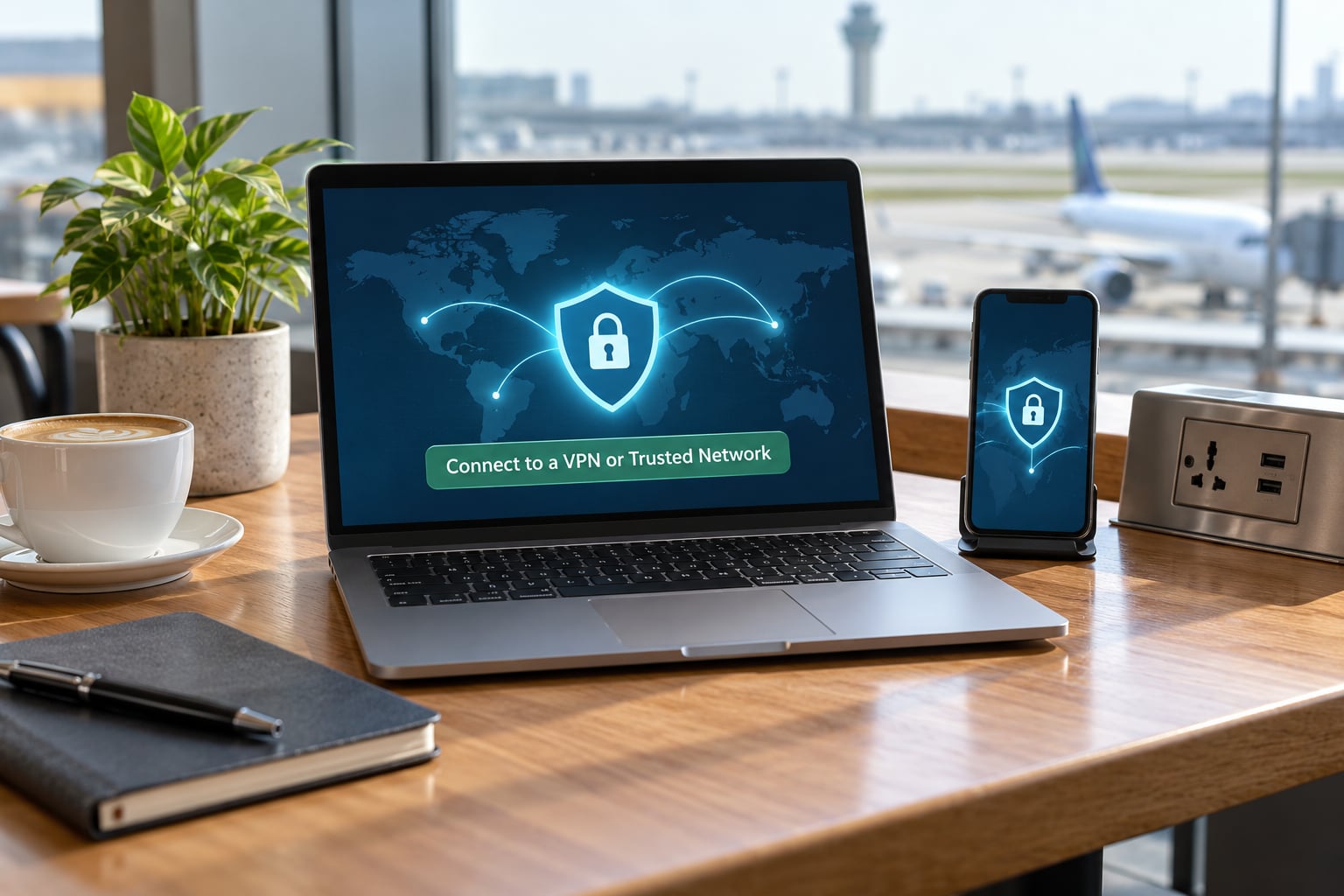
Start your VPN before you open a browser, not after. A VPN wraps your traffic in an encrypted tunnel, which means the network you joined cannot read the contents of what you send or where you are going, and your IP address is hidden from the operator.
You worked it if the app shows a connected status with no error, and you can confirm it before opening anything important. Test it once at home on a network you do not trust, such as a phone hotspot, so you know what failure looks like.
Here is the distinction most travelers get backwards. HTTPS encrypts traffic between your browser and a site that uses HTTPS, which is nearly all of them now. A VPN encrypts all traffic from your device, including apps, email clients, updates and anything that does not use HTTPS at all. HTTPS on its own is a good baseline, not a complete answer.
What a VPN does not do is hide your activity from a hotel’s own network in every case, block malware, or make an unknown network trustworthy. If you need stronger separation between you and the venue, a portable travel router does the job differently: one device authenticates to the hotel Wi-Fi, and everything else connects through the router. Travelers on forums describe that as the setup they use when carrying a phone, a laptop and a tablet.
A related annoyance: laptops that sleep overnight reconnect to the saved hotel network in the morning before the VPN wakes up. Enable the VPN’s connect-on-demand or kill-switch option, and confirm it reconnects before you start typing.
So what actually changes when the VPN is running? Five things, and the trade-off is speed:
- Encryption. On public Wi-Fi alone, only traffic that already uses HTTPS is protected. With a VPN, everything leaving the device is encrypted, including apps that skip the browser.
- Who can read your traffic. Without a VPN, that is the network operator and anyone else on it. With a VPN, nobody on the network sees the contents.
- Your IP address. Sites and the venue can see it on an open network. Through a VPN it is hidden and replaced by the VPN server’s.
- Apps that do not use a browser. Email clients and update checkers are exposed on a bare network and covered by the tunnel when the VPN is up.
- Speed. A VPN adds a little overhead, and on a weak hotel connection that overhead is more noticeable than it is on a fast network.
4. Check HTTPS and Skip Sensitive Transactions on Public Wi-Fi
Look for the padlock and the https in the address bar. If a browser shows a certificate warning, do not click through it. That warning is the one moment your browser tells you the connection may be intercepted, and dismissing it teaches your browser to do it again for you.
Hold off on online banking, card payments, work logins and health portals until you are on cellular data or a network you verified and protected. Checking a map, reading reviews or streaming a movie is a different risk level, and treating every task the same is how people talk themselves out of using a VPN at all.
You worked it if you can explain why you closed the tab instead of pressing through. Close tabs when you finish with them, and log out of anything sensitive rather than leaving a session open on a shared machine.
5. Use Strong Authentication and Safer Browsing
Turn on multifactor authentication for email, banking and your main cloud account, and prefer an authenticator app or a hardware key over SMS where you have the option. Use unique passwords from your password manager, since reused passwords turn one leak into a very bad afternoon.
Turn off automatic Wi-Fi joining so your device does not silently attach to a lookalike network. On iPhone, that is Settings, Wi-Fi, then turn off Auto-Join Network. On Android, open Settings, Network and internet, Wi-Fi, then tap the network you joined and switch off Auto-connect. On Mac, go to System Settings, Wi-Fi, then turn off Auto-Join Network. On Windows, open Settings, Network and internet, Wi-Fi and clear each saved network under Saved networks, or uncheck Connect automatically.
While you are in settings, switch off file sharing and nearby sharing. On iPhone, AirDrop and Nearby Sharing sit under Settings, General, AirDrop and Nearby; set AirDrop to Receiving Off. On Android, Nearby Share lives under the system settings for sharing. On Mac, review File Sharing under System Settings, General, Sharing or AirDrop. Small change, real benefit, because those features broadcast your device to every other device in the room.
Skip unknown downloads and unexpected permission prompts on a shared network, and clear browsing data for sensitive sessions when you are done.
6. Turn Off Connectivity When Finished
Forget the network on your phone and laptop when you leave, so the device does not auto-join it later. Turn Wi-Fi and Bluetooth off in crowded spaces, disconnect the VPN when you are back on a network you trust, and restart the device after a long session in a shared environment.
You worked it if the network no longer appears in your saved list. It takes ten seconds and it removes the most common way travelers accidentally stay attached to a network they have left.
Common Mistakes
Trusting a name because it looks official. A network called Airport_Free_WiFi_Official in an airport is exactly the name an attacker picks. Fix: confirm the name with staff, and use cellular data when you cannot.
Installing a random free VPN. A VPN sees all of your traffic by design, so a free one funded by ads and data resale may be the least private option available. Fix: use a service you have already paid for, or your employer’s, and read who operates it.
Ignoring HTTPS warnings. Dismissing a certificate warning removes the one signal your browser gives you. Fix: back out, and either reconnect through the VPN or move to cellular data.
Doing banking on hotel or airport Wi-Fi. It is the single task most likely to cost you money, and cellular data is usually available. Fix: keep the rule that banking happens on cellular only.
Leaving Bluetooth and file sharing on. Nearby sharing does not need a network to expose your device. Fix: turn AirDrop, Nearby Share and Bluetooth off in airports, gates and hotel lobbies, then back on when you need them.
Forgetting the part after something goes wrong. If you think a session was intercepted: freeze your card from another device, change your email password first, then banking, then everything else, review recent transactions and account alerts, and check for forwarding rules or new devices in your email account. Changing passwords from the same possibly compromised laptop is the mistake people make here.
Two more worth carrying in your head. A shared password that has never changed, printed on a café counter, is functionally an open network. And on a cruise ship or in-flight, the network is operated by the same kind of equipment as any other venue, so the same rules apply; treat ship Wi-Fi as one shared network rather than a private one.
Frequently Asked Questions
Is hotel Wi-Fi safe for checking email?
Hotel Wi-Fi is not automatically dangerous, but it is usually open to anyone in the building, so your traffic can be exposed. Check email over HTTPS with a VPN connected, and log out when you finish. Treat it as a shared network, not a private one, and use cellular data for anything involving money or personal records.
Do I need a VPN when using airport or hotel Wi-Fi?
A VPN is the single most useful step because it encrypts all of your traffic, including apps that do not use HTTPS. Without one, you rely on each site being secure, which is a reasonable baseline but not a complete answer. If you skip the VPN, at least avoid banking and other sensitive work on that connection.
How can I tell whether a public Wi-Fi network is legitimate?
Ask an employee for the exact network name and match it letter for letter, since impostor names are built to look official. Be suspicious of names with underscores, extra numbers, or a word like Free or Guest that differ from the chain’s real naming. If nobody can confirm the name, use your cellular data instead.
What should I do if a browser shows an HTTPS warning?
Do not click through it. A certificate warning usually means the connection may be intercepted, and dismissing it makes your browser less likely to warn you next time. Close the tab, reconnect with your VPN running, or switch to cellular data, and never enter a password on the page that produced the warning.
Can public Wi-Fi steal my banking information?
It can expose it if the connection is unencrypted and someone is positioned to capture traffic, which is why banking on hotel or airport Wi-Fi is a bad habit. Card details and passwords are the prize. The practical answer is simple: do banking on cellular data, or at minimum through a VPN on a network you verified with staff.
How do I protect my phone and laptop after returning from a trip?
Forget the networks you joined, clear saved Wi-Fi passwords, turn file sharing and AirDrop back on, and restart each device. Review recent transactions, account alerts and email for unfamiliar forwarding rules or new devices. If anything looks off, freeze your card first and change your email password from a device you trust.
Conclusion
Your first move is simple: confirm the network name with an employee, then get your VPN connected before you open a single tab. After that, keep sensitive work on cellular data, watch for the padlock, and forget the network when you walk away.
No single tool makes public Wi-Fi safe, and this guide will not pretend otherwise. A verified network, a running VPN, updated devices and unique passwords with multifactor authentication add up to something far better than walking in blind, and using public Wi-Fi safely while traveling comes down to that combination every single time.