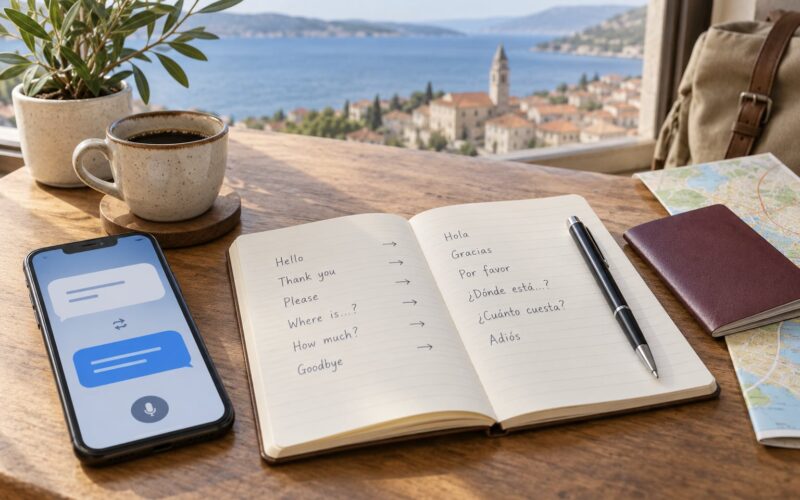
A translation app is the difference between a trip that runs smoothly and one where you stand in front of a ticket machine guessing. Learning how to use translation apps while traveling takes about twenty minutes of setup, and almost all of it has to happen before you board rather than in the middle of a station you do not understand.
The three modes that matter are text, camera, and conversation. Camera reads printed signs and menus through your phone’s lens, conversation mode speaks one language and replies in another as you talk, and text handles anything typed or pasted in. Text and downloaded language packs keep working with no signal. Camera and conversation modes need a data connection, which surprises a lot of first-time travelers at the worst possible moment.
What follows is the sequence I use: install and configure the app, download and test the languages you need, then handle each situation as it comes up. It takes longer to read than to do.
Table of Contents
- 1What You Need
- 2The essentials
- 3Which translation app should you actually use?
- 4Step-by-Step: How to Use Translation Apps While Traveling
- 5How to use translation apps while traveling for basic setup
- 6How to use translation apps while traveling for conversations
- 7How to use translation apps while traveling when there is no signal
- 8Common Mistakes
- 9Relying entirely on automatic speech recognition
- 10Skipping the offline download
- 11Setting the wrong language pair
- 12Trusting literal translations
- 13Failing to verify names, numbers, and addresses
- 14Scanning menus and signs carelessly
- 15Shouting private information at the screen
- 16Leaving live modes running
- 17Skipping the human option entirely
- 18Not learning a few phrases anyway
- 19Frequently Asked Questions
- 20Can I use a translation app without internet while traveling?
- 21What is the most accurate translation app for spoken conversations?
- 22Should I use a translation app for menus, signs, and handwritten notes?
- 23Is it safe to use a translation app for medical or emergency information?
- 24How can I improve translation accuracy in a noisy airport or restaurant?
- 25Do translation apps work offline, and how much storage do they require?
- 26Conclusion
What You Need
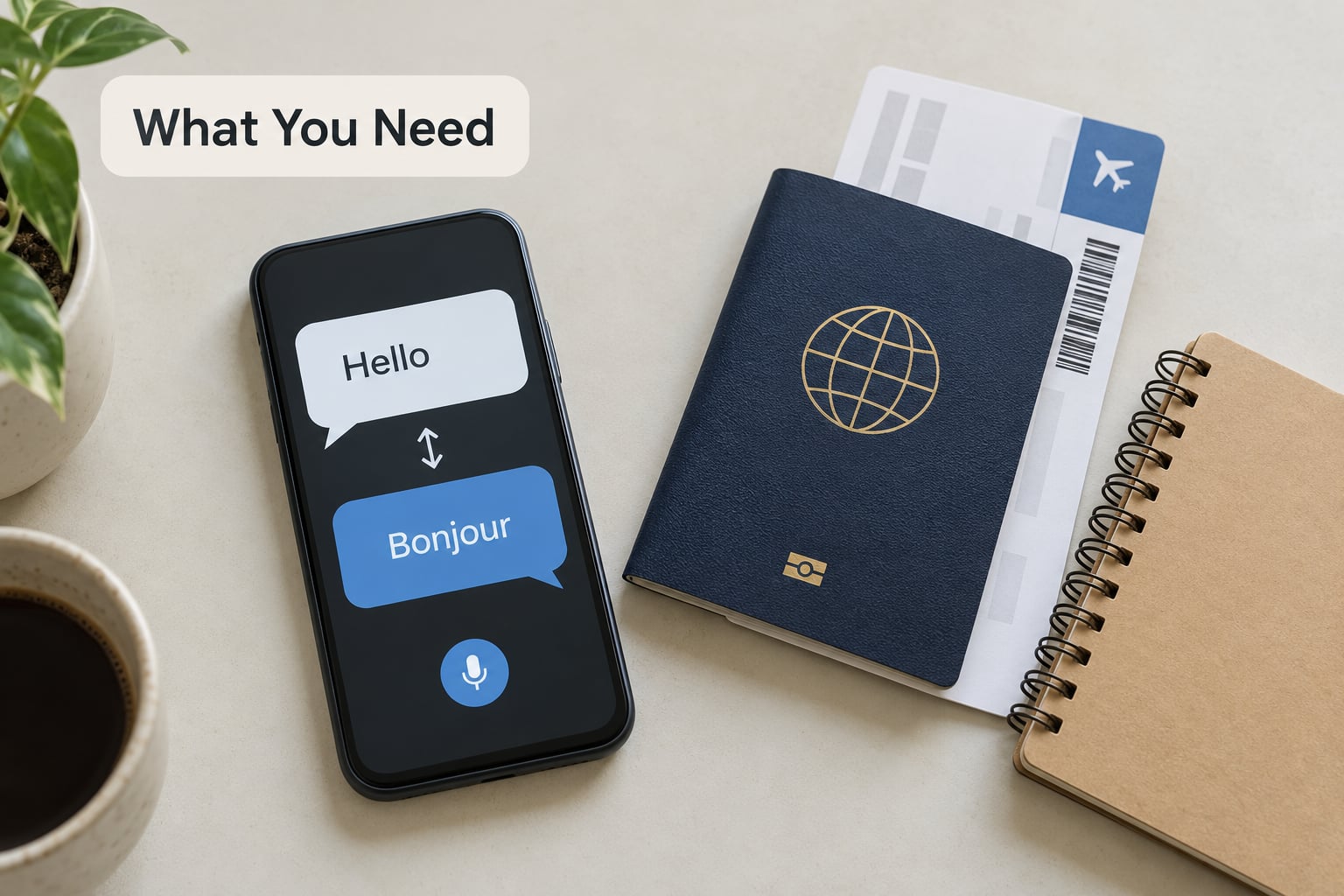
You need a working smartphone with data, one translation app, and ten spare minutes on reliable Wi-Fi. Everything else is optional.
The essentials
- A phone with enough battery for the day. Camera and conversation modes keep the screen and microphone active, which is hard on older handsets.
- One main app, already installed. Download it before you leave home rather than over hotel Wi-Fi.
- Offline language packs for the destination language and, if you are moving between countries, for every language on the route.
- Camera and microphone permissions granted to that app, checked before you need them.
- Earbuds. Two-way conversation mode is much easier when you hold the phone up and listen rather than reading.
- A backup: screenshots of key phrases, a written phrase card in your phone’s notes or on paper, and the local emergency number.
Which translation app should you actually use?
Google Translate covers the widest range of languages and has the most complete offline packs, so it is the safest default. Apple Translate is built into iOS, needs no separate download, and feels cleaner on an iPhone. Microsoft Translator works well for business travel and multi-person conversations. Naver Papago handles Korean better than the general-purpose apps, and WayGo covers Chinese and Thai. Avoid listicles that recommend apps you cannot find in the store now; several popular roundups still name software that has been discontinued for years.
| App | Best for | Works offline | Camera mode | Main limitation |
|---|---|---|---|---|
| Google Translate | Broadest language coverage | Text and speech, after pack download | Live overlay and photo | Camera and conversation need data |
| Apple Translate | iPhone users who want zero setup | Text and speech, after pack download | Live view and photo | Fewer languages than Google Translate |
| Microsoft Translator | Group conversations and business travel | Text, speech, and conversations | Photo and live view | Smaller language list |
| Papago and WayGo | Korean, Chinese, and Thai | Varies by language | Photo translation | Not a general-purpose choice |
| Pocket translator devices | Travelers who need their phone battery untouched | Yes, entirely | Photo only | Narrow language support, extra device to carry |
A dedicated pocket translator is hard to justify for most trips. Your phone already does the same job, and buying a second device for one holiday rarely pays off. It makes sense if you travel constantly, or if you need to keep your phone free for maps and tickets while a companion handles the talking.
Step-by-Step: How to Use Translation Apps While Traveling
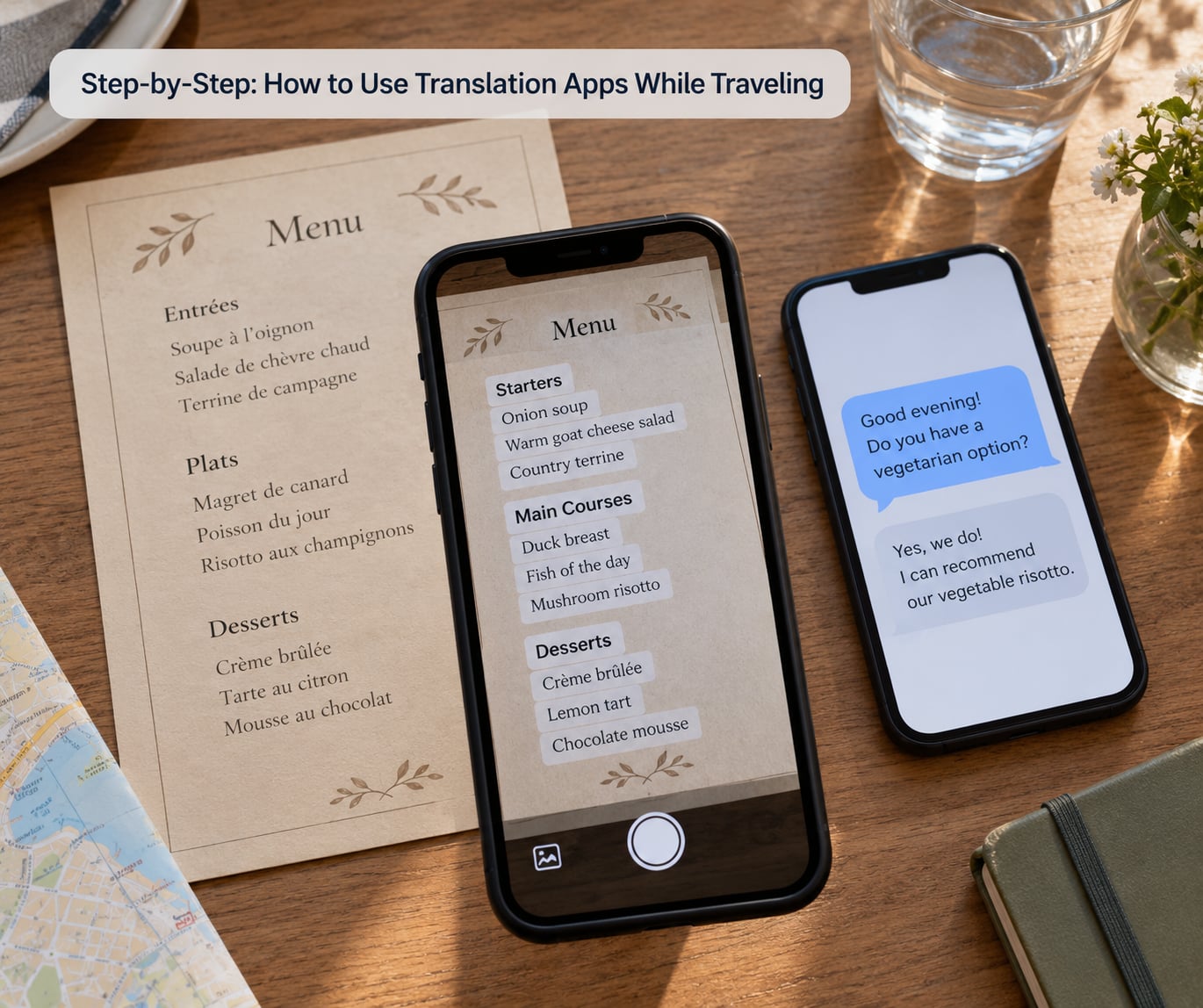
How to use translation apps while traveling for basic setup
Install the app, set your source and target languages, allow camera and microphone access, and download the offline language packs while you are still on home Wi-Fi. This is the part people skip, and it is the part that decides whether the app works when you need it.
In Google Translate, open the app and tap the pencil or language icon at the top to choose your languages. Setting the source language to your own language and the target to the local one is quicker than leaving auto-detect on, because auto-detect sometimes latches onto the wrong language mid-sentence. Then open the menu, find offline translation, download the pack for your destination language, and confirm the download finished rather than assuming it did.
Next, check permissions. Your phone’s settings screen should show camera and microphone switched on for the translation app. Then put your phone in airplane mode and test it. Type a phrase, open conversation mode, and try the camera on a page of text. If anything fails in airplane mode, you have time to fix it at home instead of at a border crossing.
How to use translation apps while traveling for conversations
Tap the microphone to start, tap again to stop, and the app transcribes what you said, translates it, and speaks it aloud for the other person. They tap their side of the screen to reply in their language, and you hear it in yours. Hold the phone between you rather than handing it over, and keep the volume high enough for them.
A few habits make this work far better. Speak in short phrases rather than long sentences, since the app transcribes what it hears and a half-finished clause confuses it. Pause after each phrase so the microphone can register it. Say numbers and names twice, and always confirm them back in English before you rely on them. For a conversation with three or four people, Google Translate has a multi-person conversation mode where several phones can join the same session, which saves an enormous amount of repetition.
For written messages, both Apple and Android phones can translate incoming chats automatically. On iPhone, go to Settings, then Apps, then Translate, then Translate Messages to switch on system-wide translation for supported apps including Messages and WhatsApp. On Android, Google Translate has an on-screen translate option for chats, and some messaging apps offer their own built-in translate button for incoming messages. Turn this on before departure and the messages arrive already readable.
Watch the etiquette. Holding a phone between two people having a conversation is normal, but reading every word aloud back and forth for a long chat becomes exhausting for everyone. Short exchanges work. Fifteen minutes of live transcription drains a battery and annoys a waiter.
How to use translation apps while traveling when there is no signal
Yes, they work without internet, but only partially, and knowing the difference prevents most frustration. Offline language packs handle typed text and, in some apps, spoken translation. Camera and conversation modes are switched off entirely without a data connection in Google Translate, because the optical character recognition and the speech-to-speech translation both run on the company’s servers.
That leaves you with a typed phrasebook. Before you fly, open the app and save the phrases you will need most: please, thank you, how much is this, the bill please, where is the toilet, I do not understand, do you speak English, I need a doctor, and the local emergency number. Save them inside the app and take screenshots, because screenshots survive a dead battery in a way a live app does not.
Screenshot your itinerary, your hotel address in the local script, and any confirmation emails. If a transit announcement comes over a station loudspeaker while you have no signal, those screenshots are all you have. Keep roaming on if your carrier supports it, and turn off automatic Wi-Fi joining so your phone does not park itself on an open airport network all day.
Common Mistakes
Most translation app failures come from the same handful of mistakes, and every one of them has an easy fix.
Relying entirely on automatic speech recognition
Accents, background noise, and fast local speech break voice input. Use the app as support rather than as the whole interaction: confirm what you understood, repeat critical details, and look for nods rather than assuming a confused silence means agreement.
Skipping the offline download
An app with no language pack is close to useless in a country where English signage is scarce. Download the packs, watch for the completion checkmark, and test in airplane mode.
Setting the wrong language pair
Translating Japanese into Spanish because the target language was still set to the one from your last trip produces confident nonsense. Set the languages each morning if you move around, and check the pair before every important translation.
Trusting literal translations
Machine translation flattens culture. Dish names come out awkward, idioms lose their meaning, and polite register often disappears, so a phrase that reads as rude may not sound rude at all. When tone matters, keep sentences short and polite: short sentences survive translation better than long ones.
Failing to verify names, numbers, and addresses
Street names and phone numbers are where mistakes are expensive. Read every digit back to whoever wrote or said it, character by character for numbers, and never act on a single transcription of a bank account, an order number, or a flight connection time.
Scanning menus and signs carelessly
Decorative fonts and handwritten chalk specials are the hardest thing for optical character recognition to read. Hold steady, get closer, use even lighting, and switch to photo mode for dense text. Photo mode lets you crop the section you care about, which produces far better results than the live overlay.
Shouting private information at the screen
Typing a passport number or a bank detail into a translation app sends it somewhere you cannot see. Do not put document numbers, banking details, or medical records into any of these apps. Use them for menus, directions, and general phrases, and read official documents through the original.
Leaving live modes running
Conversation and camera modes keep the microphone and screen on, which uses battery fast and can eat into your data allowance on a roaming connection. Close them when you are done rather than leaving them in the background, and carry a small battery pack if you are out all day.
Skipping the human option entirely
Apps flatten language, and some situations are too important for that. At a clinic, a pharmacy, a police station, or border control, ask for an interpreter directly: show the screen, say “I need an interpreter please,” and hand the phone over rather than speaking into it. Major airports and hospitals in tourist cities often have staff who speak English, and your travel insurer’s number is worth having in your favorites before you need it.
Not learning a few phrases anyway
A handful of local words changes how people treat you. Please, thank you, excuse me, I do not understand, how much is this, and the name of the country go a long way, and they cost nothing. Use the app for the detail and the short phrase for the person.
Frequently Asked Questions
Can I use a translation app without internet while traveling?
Partly. Downloaded offline language packs translate typed text and, in most apps, spoken phrases. Camera translation and live conversation mode stop working, because both send images and audio to the company’s servers for processing. Before you leave, save your key phrases inside the app and screenshot them, so a flat battery or a dead connection does not leave you stuck.
What is the most accurate translation app for spoken conversations?
None of them handles fast, accented, face-to-face speech perfectly. Google Translate has the widest language coverage and the most complete offline packs, which makes it the safest default. Apple Translate matches it closely for short exchanges on an iPhone. For Korean, Chinese, or Thai, a region-specific app such as Papago or WayGo usually reads the wording better. Accuracy improves when you speak in short phrases.
Should I use a translation app for menus, signs, and handwritten notes?
Yes, especially for signs, notices, and printed labels, where camera translation handles roughly 70 to 80 percent of real-world text. Menus are harder because of decorative fonts and dish names tied to local culture, and handwritten chalk specials are harder still. Photograph a single menu section at a time and use photo mode so you can crop it, rather than trying to catch the whole page in the live overlay.
Is it safe to use a translation app for medical or emergency information?
Use it, and then get a human involved as quickly as you can. Translation apps are fine for describing symptoms and reading pharmacy labels, but machines mistranslate drug names, dosages, and medical terms. At a clinic or hospital, ask for an interpreter and hand over your phone rather than speaking into it. Do not type passport numbers or medical record details into the app.
How can I improve translation accuracy in a noisy airport or restaurant?
Move closer and cut background noise before you start. Hold the phone about 20 centimeters from the other person, tap to start, speak one short phrase at a time, then pause so the microphone registers it. In a restaurant, ask for the item with the waiter facing you rather than reading it off a screen in silence, and confirm the result in English before you commit to the order.
Do translation apps work offline, and how much storage do they require?
Text and speech translation do, once the packs are downloaded. The packs are usually a modest download each, but a trip through five countries adds up, so download them on home Wi-Fi rather than on mobile data. Clear unused packs after the trip. Expect the full suite of downloaded languages to take up noticeably more space than the app itself.
Conclusion
Download the app and every language pack you will need before you leave home, then put your phone in airplane mode and confirm it still works. Five minutes of testing on your own Wi-Fi saves a very bad afternoon at a station in a country where you cannot read the signs.
After that, use it for what it does well: menus, signs, notices, and short exchanges. Learn six phrases by heart for the moments that need a person, and know where to ask for an interpreter before you need one.