Knowing how to find free wifi at airports comes down to two things: the official network name published by the airport, and the login page that network throws at you once you connect. Check the airport authority’s Wi-Fi page or your airline’s app before you leave home, then join the network with that exact name and let the browser sign-in portal do the rest.
Most terminals do offer free access, usually through a sponsored arrangement, but the fine print varies a lot. Some give you a couple of hours at full speed, some hand you a short burst before they throttle you, and a few gate the whole thing behind an SMS to a local number you do not have. Knowing those differences ahead of a four-hour layover is the difference between working emails and watching the clock.
This guide was last reviewed in 2026. Network names and access rules change more often than airlines publish them, so if something here no longer matches your terminal, tell us and we will correct it.
Table of Contents
- 1What You Need
- 2Step-by-Step: How to Find Free Airport Wifi
- 31. Check the Official Site to Find Free Wifi at Airports
- 42. Look for the Official Network Name Before You Connect
- 53. Connect and Open the Sign-In Page
- 64. Check Whether Access Is Free or Limited
- 75. Use a VPN and Avoid Sensitive Transactions
- 86. Save the Network Details for Your Next Visit
- 9Common Mistakes
- 10Joining a lookalike network
- 11The Wi-Fi login page never pops up
- 12Treating “connected” as “online”
- 13Ignoring the time limit
- 14Assuming last year’s password still works
- 15Relying on stale airport information
- 16Doing banking on an open network
- 17Preparation tips that prevent most of this
- 18Frequently Asked Questions
- 19Is Wi-Fi usually free at airports?
- 20How can I tell which airport Wi-Fi network is legitimate?
- 21Can I use airport Wi-Fi for online banking?
- 22Do I need a VPN to use airport Wi-Fi?
- 23Why is airport Wi-Fi slow or not working?
- 24Can I use my phone’s hotspot instead of airport Wi-Fi?
- 25Conclusion
What You Need
Four things, and none of them costs you anything.
- A Wi-Fi capable device. Any phone, tablet or laptop made in the last decade will do. The steps differ slightly between iOS and Android, and I have covered both below.
- The official network name. The airport authority’s Wi-Fi page, or signage in the terminal. This is the only source you should trust when choosing between two networks with similar names.
- A web browser. The sign-in page is a web page. Without a browser to accept the terms, you are connected to nothing.
- Optionally a VPN. Useful if you plan to do anything sensitive on the network, and worth having installed before you fly rather than downloading it in the terminal.
Installing your VPN before you fly beats downloading one over an open network, and a saved Wi-Fi password map only helps if you pulled it down at home.
Step-by-Step: How to Find Free Airport Wifi
1. Check the Official Site to Find Free Wifi at Airports
Go to the airport operator’s own website before you leave for the airport. Every large hub has a Wi-Fi page with the network name, the terminals it covers, and how access is granted. San Francisco’s page describes free wireless access in all terminals. Los Angeles states free Wi-Fi in the public areas of all terminals and lists a help desk number. Miami publishes a single network name used throughout its indoor public areas.
Airline apps are a good second stop, particularly for lounge networks, which are usually separate from the public terminal network and gated behind a boarding pass scan. Check whether the layover is long enough to use one before you plan a working session around it.
How you tell it worked: you can name the network before you arrive, in plain text, without walking up to anyone.
2. Look for the Official Network Name Before You Connect
Terminals are full of open networks that have nothing to do with the airport. Airports are public buildings full of strangers and shared hardware, so a device nearby can broadcast anything, including one called “Airport Free WiFi” or a near-copy of the official name with a number added.
Match the name character for character against what you found on the official page. If two networks differ by one letter or a trailing digit, the impostor is the one with the extra characters. When in doubt, walk. Help desks at most major terminals can confirm the network for you.
This is the most common mistake by a distance, and the reason so many people end up twenty minutes into a sign-in page that belongs to a stranger’s laptop rather than the airport.
3. Connect and Open the Sign-In Page
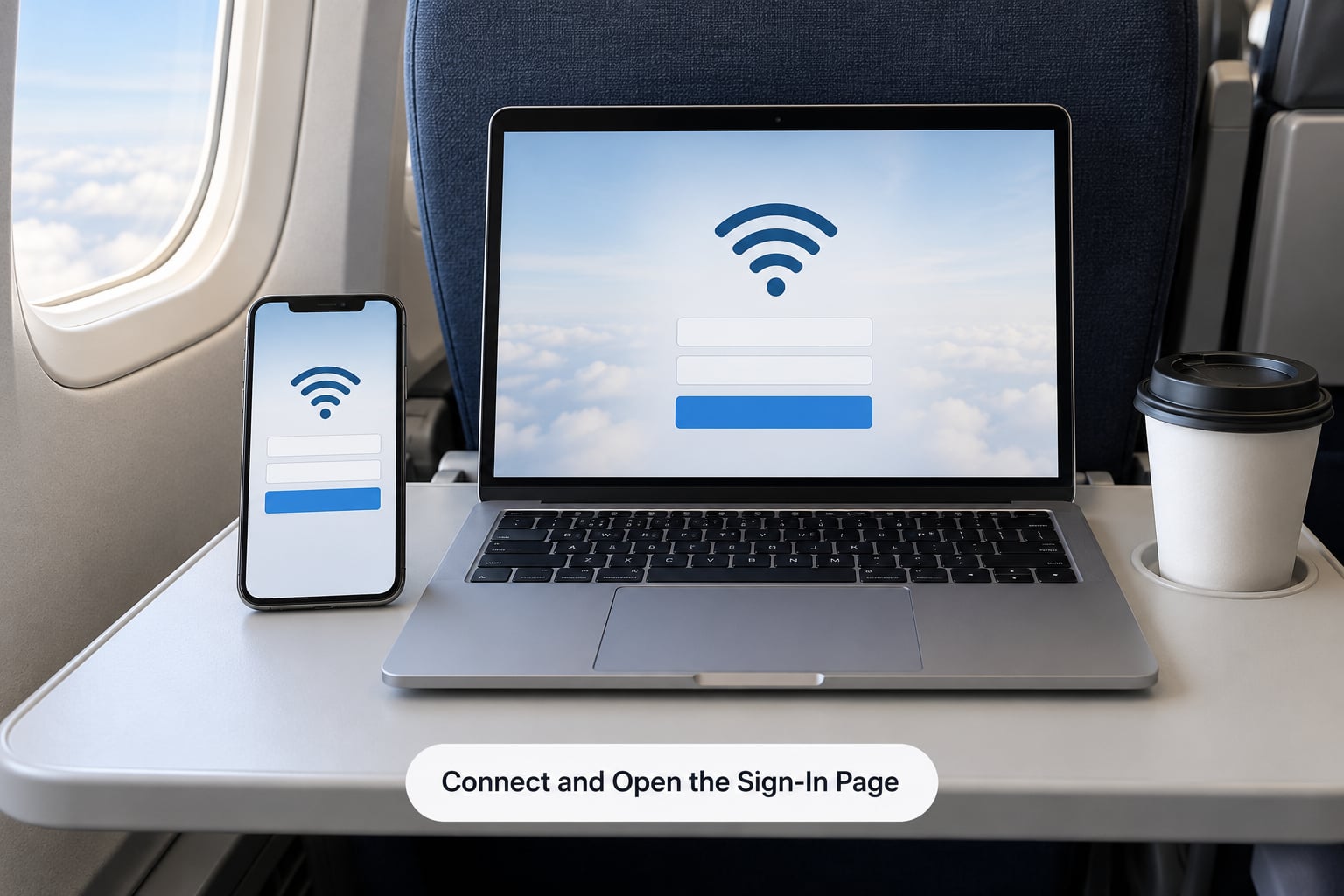
Select the network on your device. You will often show as connected, with no internet, because the network is holding your traffic until you sign in. That is normal.
To force the sign-in page to appear, open your browser and request a plain, unencrypted address such as http://neverssl.com or http://captive.apple.com. Those addresses are designed to redirect. If you only load secure sites, the portal may stay hidden behind a browser error that looks like a broken connection.
On an iPhone, Settings then Wi-Fi, tap the network name, then tap the info button beside it. Android users open Settings, Connections, Wi-Fi, and tap the connected network to see the portal button.
How you tell it worked: a page loads that names the airport or its sponsor and asks you to accept terms or watch a short advert. After that, ordinary browsing starts working.
4. Check Whether Access Is Free or Limited
Free rarely means unlimited. Sponsored airport networks, which carriers and telcos buy advertising on, typically give you a set window at full speed and then cut you down or drop you. The specifics are published on the airport page, so this is another reason to read step one properly rather than skimming.
- Open network, no password. You join and sign in through the browser. Nothing to remember.
- Open network, password required. The password is printed on signage or in a community map. This is where most searchers get stuck.
- Password, plus SMS verification. Some European airports want you to text a code to a local number before the session starts. Without roaming, you cannot complete it. Boarding-pass scanners have worked as an alternative at some hubs.
Lounge Wi-Fi sits outside all of this. It is included with your ticket, but only if you are in the lounge, and lounge policies change often enough that you should confirm before booking a long layover around one.
5. Use a VPN and Avoid Sensitive Transactions
Treat an airport network the way you would treat a café one. Almost all of the traffic you send is wrapped in HTTPS, which hides the content, but the connection itself is open to anyone else sharing that same network. Traveller forums are full of people warning each other off public networks for exactly this reason, and their advice is sound.
Practical rules that cover most cases:
- Turn on a VPN before you open anything else. One running at connect time protects the whole session.
- Check for the padlock in the address bar on banking, email and work logins. If it is missing, leave the page.
- Do not accept unexpected certificate warnings. That warning is often the one thing standing between you and a hijacked session.
- Skip anything genuinely sensitive if you cannot get a VPN working. Public Wi-Fi is fine for reading, email on a locked device with two-factor on, and streaming. It is a poor place to move money.
6. Save the Network Details for Your Next Visit
Write down the network name, whether it needed a password, and how you signed in. Screenshot the official airport Wi-Fi page on your phone before you leave signal, because once you are in the terminal the page may not load.
Recheck it next time anyway. Airport operators rename networks when contracts change, and community-submitted passwords go stale within months. A map listing that predates your trip is a hint, not an answer. The official page beats any third-party list whenever the two disagree.
Common Mistakes
Joining a lookalike network
Two open networks with almost identical names, and you picked the wrong one. Fix: match the name character for character against the airport page, and remember that the network with extra characters added to it is the fake one.
The Wi-Fi login page never pops up
The most common failure, and a top question in search results. Your device is on the network but nothing loads. Fix: open http://neverssl.com in plain HTTP, toggle airplane mode on and off once, and restart the browser. Force a redirect to a plain HTTP address and the sign-in page usually shows up on the next try.
Treating “connected” as “online”
The status bar says connected, so you assume you have internet. Fix: load any page that is not already cached. A captive portal blocks everything until you sign in, and the Wi-Fi icon alone tells you nothing about whether you are actually online.
Ignoring the time limit
You spent the free window reading email and hit the cap mid-task. Fix: note the allowance when you sign in, download what you need first, and save the heavy work for before or after the flight on your own data.
Assuming last year’s password still works
The network name is right but the password is refused. Fix: go back to the official airport page. If it does not list a password, try a community map, and treat a listing from years ago as a rumor rather than a fact.
Relying on stale airport information
You planned your whole layover around free Wi-Fi that is now sponsor-only or gone. Fix: check the terminal’s Wi-Fi page the week you fly, and keep a fallback. A travel eSIM with a data allowance works anywhere there is a signal, which is more than you can say for any single airport network.
Doing banking on an open network
You needed to check your account and did it on the terminal network without a VPN. Fix: switch to mobile data, or start a VPN first. If your roaming plan is thin, a travel eSIM bought before departure keeps the fix working past the terminal.
Preparation tips that prevent most of this
Download your offline map, boarding pass and any documents before you leave the house. Install your VPN. Screenshot the airport’s Wi-Fi page. Set your phone to ask before joining unknown networks. Those five minutes at home remove almost every problem described above, and they work even when the airport network refuses to cooperate.
Frequently Asked Questions
Is Wi-Fi usually free at airports?
Most large airports do offer free Wi-Fi in terminals, usually funded by a sponsor such as an airline or telco rather than by passengers. The catch is that access is often capped. Common patterns are a free window at full speed followed by slower service, a set number of minutes per session, or a sponsored sign-in page with adverts. Smaller regional airports often have nothing free at all, so check the airport’s own Wi-Fi page before you count on it.
How can I tell which airport Wi-Fi network is legitimate?
Match the network name exactly against the airport authority’s official Wi-Fi page. Official names are published there, and a fake hotspot almost always differs by a letter, a digit or a generic suffix like Free or Guest. Be suspicious of any open network that appears without a matching entry on the official page. When two options are confusingly similar, ask at the terminal Wi-Fi help desk rather than guessing.
Can I use airport Wi-Fi for online banking?
It is possible but not ideal. HTTPS encryption protects most of the session, and your bank will likely challenge you with two-factor authentication, yet the underlying connection is still shared with everyone else in the terminal. The safer route is to turn on a VPN before you open the banking app or site. If you cannot get a VPN running, use your phone’s mobile data instead and check your account later.
Do I need a VPN to use airport Wi-Fi?
For casual browsing, streaming and email on a device with screen lock and two-factor login, you can usually manage without one. For anything involving banking, work logins, shopping or sensitive files, a VPN is worth the small effort. Install and sign in to it before you start browsing rather than after, since it protects the whole session from the moment the tunnel is up.
Why is airport Wi-Fi slow or not working?
The usual causes are a full free-time allowance that has triggered throttling, a crowd of users on the same network during a busy banking period, or a sign-in page you have not completed. If nothing loads at all, you are probably sitting on the captive portal. Open a plain HTTP address such as neverssl.com, toggle airplane mode once, and restart your browser to force the sign-in page to appear.
Can I use my phone’s hotspot instead of airport Wi-Fi?
Yes, and it is often faster and more private than the terminal network. What it costs is battery and mobile data from your own plan. If you are a frequent flyer, a travel eSIM with a generous data allowance often works out better than paying day rates for roaming, and it keeps working in the taxi and at your destination too.
Conclusion
Start before you leave: pull up the airport authority’s Wi-Fi page, write down the network name and the access rules, and screenshot the page so it works offline. That single habit is how to find free wifi at airports reliably, terminal after terminal. At the hub itself, join only the network that matches that name exactly, expect a browser sign-in page even if the portal does not appear on its own, and turn on a VPN before you touch anything that matters.